Accessing the Azure login portal doesn’t have to be complicated. Whether you’re a cloud beginner or an IT pro, mastering secure and efficient login processes is essential for productivity and protection.
Azure Login Portal: The Ultimate Gateway to Cloud Management
The Azure login portal serves as the primary entry point for millions of users accessing Microsoft’s cloud ecosystem. From managing virtual machines to configuring AI models, everything starts with a successful and secure login. Understanding how this portal functions is the first step toward mastering Azure’s vast capabilities.




What Is the Azure Login Portal?
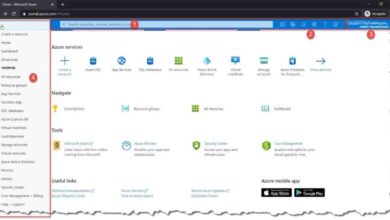
The Azure login portal, officially known as the Azure portal, is a web-based interface that allows users to manage Azure services. It acts as a centralized dashboard where administrators, developers, and analysts can deploy, monitor, and optimize cloud resources.
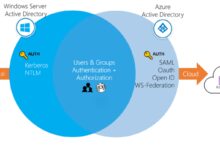
- It supports identity authentication via Microsoft Entra ID (formerly Azure AD).
- Users can access it from any device with a modern browser.
- It integrates seamlessly with other Microsoft 365 services.
“The Azure portal is not just a login page—it’s the control center for your entire cloud infrastructure.” — Microsoft Cloud Documentation
Why the Azure Login Portal Matters for Businesses
For enterprises, the Azure login portal is more than just a gateway—it’s a strategic asset. It enables role-based access control (RBAC), audit logging, and multi-factor authentication (MFA), ensuring that only authorized personnel can access critical systems.
- Centralized user management reduces administrative overhead.
- Real-time monitoring helps detect unauthorized access attempts.
- Integration with compliance tools supports regulatory requirements like GDPR and HIPAA.
Step-by-Step Guide to Accessing the Azure Login Portal
Logging into the Azure portal is straightforward, but knowing the correct steps ensures a smooth experience. Whether you’re using a personal Microsoft account or a work/school account, the process is designed to be intuitive.
How to Navigate to the Azure Login Page
To begin, open your preferred web browser and go to portal.azure.com. This is the official URL for the Azure login portal. Avoid third-party links to prevent phishing risks.
- Bookmark the official site for quick future access.
- Use incognito/private mode if logging in from a shared device.
- Ensure your browser is updated to support modern security protocols.
Entering Your Credentials Correctly
Once on the login page, enter your email address associated with your Azure subscription. This could be a Microsoft account (e.g., @outlook.com) or a work/school account (e.g., @company.com).
- Double-check the spelling of your email to avoid lockouts.
- If you’re part of an organization, your admin may enforce password policies.
- Use a password manager to store complex credentials securely.
Completing Multi-Factor Authentication (MFA)
After entering your password, you’ll likely be prompted for MFA. This adds a second layer of security by requiring a verification code from your phone, authenticator app, or email.
- Microsoft Authenticator app is recommended for push notifications.
- SMS-based codes are less secure but widely supported.
- Backup methods should be configured in case your primary device is lost.
“MFA blocks over 99.9% of account compromise attacks.” — Microsoft Security Intelligence Report
Common Issues When Using the Azure Login Portal and How to Fix Them
Even experienced users encounter login problems. From forgotten passwords to MFA failures, these issues can disrupt workflows. Fortunately, most have simple solutions.
Forgot Password? Here’s What to Do
If you can’t remember your password, click “Forgot password?” on the login screen. You’ll be guided through a recovery process that verifies your identity via email, phone, or security questions.
- Ensure your recovery options are up to date in your profile.
- Organizational accounts may require admin intervention.
- Use self-service password reset (SSPR) if enabled by your IT team.
Account Locked Out? Troubleshooting Steps
Repeated failed login attempts can trigger account lockout. Wait 30 minutes or contact your Azure administrator to unlock it immediately.
- Check if your keyboard’s Caps Lock is on—passwords are case-sensitive.
- Clear browser cache and cookies if the page behaves oddly.
- Try a different browser or device to isolate the issue.
MFA Not Working? Alternative Verification Methods
If your authenticator app isn’t sending codes, switch to a backup method like phone call or alternate email. You can also re-register your device through the Microsoft MFA setup page.
- Reinstall the Microsoft Authenticator app if it crashes.
- Ensure your device has internet or cellular connectivity.
- Sync time settings on your phone—incorrect time breaks TOTP codes.
Security Best Practices for the Azure Login Portal
Security is paramount when accessing cloud resources. The Azure login portal is a high-value target for attackers, making it essential to follow industry-standard protection strategies.
Enable Multi-Factor Authentication (MFA) for All Users
MFA is the single most effective way to prevent unauthorized access. It combines something you know (password) with something you have (phone) or something you are (biometrics).
- Enforce MFA through Microsoft Entra Conditional Access policies.
- Use phishing-resistant methods like FIDO2 security keys.
- Regularly audit MFA enrollment status across your organization.
“Organizations that enforce MFA reduce breach risk by over 99%.” — Microsoft Azure Security Benchmark
Use Conditional Access Policies to Control Login Behavior
Conditional Access in Microsoft Entra ID allows admins to set rules based on user location, device compliance, and sign-in risk. For example, you can block logins from high-risk countries or unmanaged devices.
- Create policies that require compliant devices for access.
- Leverage risk-based sign-in detection to prompt additional verification.
- Test policies in “report-only” mode before enforcement.
Monitor Sign-In Logs for Suspicious Activity
The Azure portal provides detailed sign-in logs under Microsoft Entra ID > Monitoring > Sign-ins. These logs show when, where, and how users logged in.
- Look for sign-ins from unusual locations or at odd hours.
- Filter logs by status (success/failure) to identify attack patterns.
- Integrate with Azure Monitor or Sentinel for automated alerts.
How to Manage Multiple Azure Subscriptions via the Login Portal
Many users work with multiple Azure subscriptions—perhaps one for development, another for production, and a third for testing. The Azure login portal makes it easy to switch between them without logging out.
Switching Between Subscriptions Efficiently
After logging in, click your profile icon in the top-right corner and select “Switch directory” or “Change directory” to move between tenants. Then, use the subscription filter in the portal’s top menu to choose the active subscription.
- Pin frequently used subscriptions for faster access.
- Use Azure Lighthouse to manage subscriptions across customer organizations.
- Assign appropriate roles (Owner, Contributor, Reader) per subscription.
Understanding Tenant vs. Subscription in Azure
A tenant represents an organization in Microsoft Entra ID, while a subscription is a billing and resource management boundary. One tenant can have multiple subscriptions, but a user must have permissions in each to access them.
- Tenants are created when you sign up for Azure or Microsoft 365.
- Subscriptions can be added via the Azure portal or through Enterprise Agreements.
- Cross-tenant access can be configured for hybrid or partner scenarios.
Using Azure CLI and PowerShell Alongside the Portal
While the Azure login portal is GUI-based, advanced users often combine it with command-line tools like Azure CLI or PowerShell. These tools allow automation and scripting of repetitive tasks.
- Run `az login` in CLI to authenticate using the same credentials.
- Use `Connect-AzAccount` in PowerShell for session-based login.
- Leverage service principals for non-interactive scripts.
“The Azure portal is great for visualization, but CLI and PowerShell are essential for scalability.” — Azure DevOps Expert
Customizing Your Azure Portal Dashboard for Maximum Productivity
The Azure login portal isn’t just functional—it’s customizable. You can tailor the dashboard to display the resources and metrics that matter most to your role.
Creating a Personalized Dashboard
After logging in, go to the “Dashboard” tab and click “Edit” to customize your view. Drag and drop tiles for VMs, storage accounts, databases, and more.
- Save custom dashboards for different projects or teams.
- Share dashboards with colleagues for collaborative monitoring.
- Use metric alerts to highlight critical thresholds directly on tiles.
Saving and Sharing Custom Views
Once you’ve built a useful dashboard, save it with a descriptive name. You can then share it with other users who have access to the same resources.
- Use role-based permissions to control who can edit or view dashboards.
- Export dashboards as JSON for backup or version control.
- Apply themes for better visual clarity (dark mode, high contrast).
Using Quickstart Templates and Marketplace Shortcuts
The portal’s Marketplace and Quickstart templates allow you to deploy common solutions with just a few clicks. Pin these to your dashboard for faster access.
- Deploy a WordPress site, SQL database, or Kubernetes cluster in minutes.
- Use ARM templates for repeatable, auditable deployments.
- Filter templates by popularity, rating, or Microsoft-verified status.
Advanced Features of the Azure Login Portal for Admins
For administrators, the Azure login portal offers powerful tools for governance, compliance, and automation. These features go beyond basic login and navigation.
Managing User Roles and Permissions
Through the portal, admins can assign roles like Owner, Contributor, or Reader using Role-Based Access Control (RBAC). This ensures the principle of least privilege is followed.
- Assign roles at the subscription, resource group, or individual resource level.
- Use Azure Blueprints to enforce organizational standards.
- Review access with Azure AD Access Reviews for periodic audits.
Configuring Single Sign-On (SSO) for Enterprise Apps
The Azure login portal integrates with thousands of SaaS applications via SSO. Users can log in once and access multiple apps without re-entering credentials.
- Set up SSO using SAML, OAuth, or OpenID Connect.
- Use Azure AD Application Proxy for on-premises apps.
- Enable seamless SSO for domain-joined devices.
“Azure AD is the identity backbone for over 1.5 million organizations worldwide.” — Microsoft
Setting Up Azure AD Identity Protection
Azure AD Identity Protection detects risky sign-ins and user behaviors. It can automatically block suspicious activity or prompt for password resets.
- Configure risk policies to respond to medium or high-risk detections.
- Review risk detections in the Identity Protection dashboard.
- Integrate with Microsoft Defender for Cloud for unified threat visibility.
Future Trends: What’s Next for the Azure Login Portal?
Microsoft continuously enhances the Azure login portal with AI-driven insights, improved accessibility, and stronger security. Staying ahead of these trends ensures you’re prepared for the next generation of cloud access.
AI-Powered Login Assistance and Predictive Analytics
Future versions of the portal may include AI assistants that predict user needs, suggest optimizations, or detect anomalies in real time.
- AI could auto-remediate failed logins by suggesting recovery steps.
- Predictive analytics might forecast resource usage based on login patterns.
- Natural language queries could replace complex navigation.
Zero Trust and Passwordless Authentication
Microsoft is moving toward a passwordless future. Features like Windows Hello, FIDO2 keys, and Microsoft Authenticator are paving the way for Zero Trust security models.
- Users can log in with biometrics instead of passwords.
- Conditional Access policies will increasingly demand device compliance.
- Passwordless sign-in reduces phishing and credential theft.
Enhanced Mobile Experience and PWA Support
The Azure portal is becoming more mobile-friendly. Progressive Web App (PWA) support allows users to install the portal on their phones or tablets for faster access.
- PWA enables offline viewing of recent data.
- Touch-optimized interfaces improve usability on small screens.
- Push notifications alert users to critical events.
How do I access the Azure login portal?
You can access the Azure login portal by visiting portal.azure.com and entering your Microsoft or work/school account credentials. Multi-factor authentication may be required.
What should I do if I can’t log in to Azure?
If you can’t log in, check your internet connection, verify your credentials, and ensure MFA is working. Use the “Forgot password?” link or contact your administrator if locked out.
Is the Azure login portal secure?
Yes, the Azure login portal is highly secure, supporting MFA, Conditional Access, and identity protection. However, users must follow best practices like strong passwords and device compliance.
Can I manage multiple Azure accounts from one portal?
Yes, you can switch between directories and subscriptions within the same Azure portal session. Just use the directory and subscription filters in the top navigation bar.
What is the difference between Azure AD and the Azure portal?
Azure AD (now Microsoft Entra ID) is the identity and access management service, while the Azure portal is the web interface used to manage Azure resources. The login portal relies on Azure AD for authentication.
Mastering the Azure login portal is essential for anyone working with Microsoft’s cloud platform. From secure authentication and troubleshooting common issues to leveraging advanced admin tools and preparing for future innovations, this guide has covered the full spectrum. By following best practices in security, access management, and customization, you can maximize both productivity and protection. As Microsoft continues to evolve the portal with AI, Zero Trust, and mobile enhancements, staying informed ensures you’re always one step ahead in the cloud journey.
Recommended for you 👇
Further Reading: