Want to sign in to Azure but not sure where to start? You’re not alone. Millions of users log in daily to manage cloud resources, deploy apps, and secure data. This guide breaks down everything you need to know to sign in to Azure quickly, securely, and without hassle.
What Does It Mean to Sign In to Azure?

Signing in to Azure is your gateway to Microsoft’s powerful cloud computing platform. Whether you’re an IT admin, developer, or business user, accessing Azure begins with authentication through a valid identity. This identity is typically managed via Microsoft Entra ID (formerly Azure Active Directory), which verifies who you are before granting access to cloud services.




Understanding Microsoft Entra ID (Azure AD)
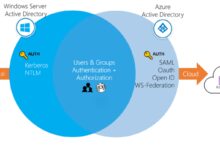
Microsoft Entra ID is the identity and access management service behind every sign in to Azure. It’s not just a login system—it’s a full-fledged identity provider that supports single sign-on (SSO), multi-factor authentication (MFA), conditional access policies, and more.
- Every user who signs in to Azure must have an identity in Entra ID.
- Identities can be cloud-only, synchronized from on-premises Active Directory, or federated.
- Entra ID supports both personal Microsoft accounts and work/school accounts.
“Microsoft Entra ID is the foundation of secure access across Azure and Microsoft 365.” — Microsoft Official Documentation
Different Types of Azure Accounts
Not all accounts are created equal when you sign in to Azure. The type of account you use determines your access level and available features.
- Work or School Account: Used by organizations, managed by administrators, and typically ends with a company domain (e.g., user@company.com).
- Microsoft Account (MSA): Personal accounts like those used for Outlook.com or Xbox, often ending in @outlook.com or @hotmail.com.
- Guest User: External collaborators invited via Azure B2B collaboration.
Only work or school accounts are recommended for production Azure environments due to enhanced security and management controls.
Step-by-Step Guide to Sign In to Azure
Signing in to Azure is straightforward if you follow the correct steps. Whether you’re accessing the Azure portal, CLI, or PowerShell, the process starts with navigating to the right entry point and authenticating securely.
How to Sign In to Azure Portal via Web Browser
The most common way to sign in to Azure is through the Azure portal. Here’s how:
- Open a modern web browser (Chrome, Edge, Firefox).
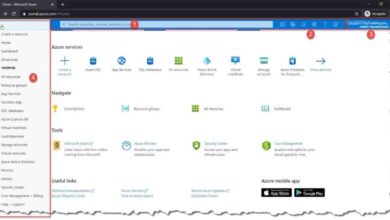
- Go to https://portal.azure.com.
- Enter your email address (work/school or Microsoft account).
- Enter your password.
- If enabled, complete multi-factor authentication (MFA).
- Upon successful verification, you’ll land on the Azure dashboard.
Tip: Bookmark the portal URL for faster access in the future.
Using Azure CLI to Sign In
For developers and DevOps engineers, the Azure Command-Line Interface (CLI) offers a powerful alternative to the web portal. To sign in to Azure using CLI:
- Install Azure CLI from the official Microsoft site.
- Open your terminal (Windows Terminal, PowerShell, Bash, etc.).
- Run the command:
az login. - A browser window will open prompting you to sign in to Azure.
- After authentication, the CLI displays your subscriptions.
You can also use service principals or managed identities for non-interactive sign-ins in automation scripts.
Signing In via Azure PowerShell
Azure PowerShell is another essential tool for managing Azure resources. To sign in:
- Install the Az PowerShell module.
- Launch PowerShell as an administrator.
- Run:
Connect-AzAccount. - Enter your credentials in the pop-up window.
- Verify login with
Get-AzSubscription.
This method supports MFA and is widely used in enterprise automation workflows.
Common Issues When Trying to Sign In to Azure
Even experienced users face hurdles when trying to sign in to Azure. Understanding common problems—and their solutions—can save time and frustration.
Forgot Password or Locked Account
One of the most frequent issues is forgetting your password or getting locked out after multiple failed attempts.
- If you’re using a work/school account, reset your password via the Microsoft Password Reset portal.
- Organizations may require admin approval for resets.
- Ensure your account isn’t locked due to security policies—contact your Azure admin if needed.
Multi-Factor Authentication (MFA) Problems
MFA enhances security but can cause login delays if not configured properly.
- Ensure your authenticator app is synced correctly.
- Check that your phone number or email used for MFA is up to date.
- If you’ve lost your device, use backup methods like app passwords or alternate contacts.
Admins can temporarily exempt users from MFA during emergencies, though this should be done cautiously.
Subscription Not Showing After Login
Sometimes, after you sign in to Azure, your subscription doesn’t appear. This usually happens due to permission issues.
- Verify you have at least Reader role on the subscription.
- Check if you’re logging in with the correct account (especially if you have multiple).
- Use
az account list(CLI) orGet-AzSubscription(PowerShell) to list accessible subscriptions.
If the subscription exists but isn’t visible, contact your subscription owner or global admin to assign appropriate roles.
Security Best Practices When You Sign In to Azure
Every time you sign in to Azure, you’re potentially exposing sensitive systems. Following security best practices minimizes risk and protects your cloud environment.
Enable Multi-Factor Authentication (MFA)
MFA is one of the most effective ways to secure your Azure sign-in process.
- Requires users to verify identity using two or more methods (e.g., password + phone call).
- Reduces the risk of account compromise even if passwords are stolen.
- Can be enforced via Conditional Access policies in Microsoft Entra ID.
Microsoft reports that MFA blocks over 99.9% of account compromise attacks.
Use Role-Based Access Control (RBAC)
RBAC ensures users only have the permissions they need—no more, no less.
- Assign roles like Contributor, Reader, or custom roles based on job function.
- Avoid assigning Owner role unless absolutely necessary.
- Regularly review access with Azure AD Access Reviews.
Principle of least privilege is key to minimizing insider threats and accidental changes.
Monitor Sign-In Activity with Azure AD Logs
Azure provides detailed logs of every sign-in attempt—successful or failed.
- Access logs via the Azure AD > Monitoring > Sign-in logs section.
- Filter by user, app, status, IP address, and risk level.
- Set up alerts for suspicious activities like logins from unfamiliar locations.
These logs are crucial for compliance audits and incident response.
Advanced Authentication Methods for Signing In to Azure
Beyond username and password, Azure supports advanced authentication methods that enhance both security and user experience.
Passwordless Authentication Options
Microsoft is pushing toward a passwordless future. Here are the main options when you sign in to Azure:
- Microsoft Authenticator App: Approve sign-ins with a tap or biometric verification.
- Windows Hello for Business: Use facial recognition or fingerprint on compatible devices.
- FIDO2 Security Keys: Physical keys (like YubiKey) that provide phishing-resistant authentication.
These methods eliminate the risk of password theft and streamline the login process.
Single Sign-On (SSO) Across Microsoft Cloud
Once you sign in to Azure, SSO allows seamless access to other Microsoft services like Office 365, Dynamics 365, and Power Platform.
- Users authenticate once and gain access to all authorized apps.
- Reduces password fatigue and improves productivity.
- Admins can configure app integrations via Enterprise Applications in Azure AD.
SSO relies on OAuth 2.0, OpenID Connect, and SAML protocols behind the scenes.
Federated Identity with On-Premises AD
Large organizations often use Active Directory Federation Services (AD FS) or Azure AD Connect with pass-through authentication to enable federated sign-ins.
- Users sign in with their on-premises credentials.
- Password validation occurs on-premises, enhancing control.
- Supports seamless integration with legacy systems.
This setup is ideal for hybrid environments where cloud and on-premises resources coexist.
Troubleshooting Tips: What to Do If You Can’t Sign In to Azure
Even with best practices, issues can arise. Here’s a systematic approach to resolve sign-in failures.
Check Your Internet Connection and Browser Compatibility
Basic connectivity issues are often overlooked.
- Ensure you have stable internet access.
- Use supported browsers: Edge, Chrome, Firefox, or Safari.
- Clear cache and cookies if pages fail to load.
- Disable browser extensions that may interfere with login flows.
Verify Tenant and Domain Configuration
Signing in to the wrong tenant is a common mistake.
- Ensure you’re using the correct domain (e.g., company.com vs. company.onmicrosoft.com).
- If your organization has multiple tenants, confirm which one hosts your subscription.
- Use
https://portal.azure.com/?tenantid=<your-tenant-id>to force login to a specific tenant.
Contact Your Azure Administrator
If you’ve verified credentials and settings but still can’t sign in to Azure, it’s time to escalate.
- Your admin can check if your account is disabled or expired.
- They can reset your password or reassign roles.
- They can review Conditional Access policies blocking your access.
Never share your password—even with IT staff. Use secure support channels instead.
How to Stay Secure After You Sign In to Azure
Signing in is just the beginning. Once inside, maintaining security is critical.
Regularly Review Access and Permissions
Over time, users accumulate unnecessary permissions.
- Use Azure AD Access Reviews to audit who has access to what.
- Remove inactive users and guest accounts.
- Enforce just-in-time (JIT) access using Azure Privileged Identity Management (PIM).
Enable Azure Security Center (now Defender for Cloud)
Microsoft Defender for Cloud continuously monitors your environment for threats.
- Provides security recommendations for resources.
- Detects vulnerabilities and misconfigurations.
- Offers advanced threat protection for servers, databases, and networks.
It integrates directly with the Azure portal and sends alerts when risks are detected.
Log Out Properly and Use Private Browsing
Always log out when using shared or public computers.
- Click your profile icon in the Azure portal and select Sign out.
- Use private/incognito mode to prevent session persistence.
- Avoid saving passwords in browsers on untrusted devices.
These small steps prevent unauthorized access after your session ends.
Future of Signing In to Azure: What’s Next?
The way we sign in to Azure is evolving rapidly. Microsoft continues to innovate in identity and access management.
AI-Powered Identity Protection
Microsoft Entra ID now includes AI-driven risk detection.
- Identifies suspicious sign-in behaviors (e.g., impossible travel, anonymous IP).
- Automatically blocks high-risk attempts or prompts for MFA.
- Learns from historical patterns to improve accuracy.
This proactive defense is part of Microsoft’s zero-trust security model.
Biometric and Device-Based Authentication
Future sign-ins may rely less on passwords and more on devices and biology.
- Windows Hello, Face ID, and Touch ID are already supported.
- Device health checks ensure only compliant devices can access Azure.
- Continuous authentication tracks user behavior during sessions.
This shift enhances both security and user experience.
Integration with Third-Party Identity Providers
Azure supports federation with external IdPs like Google, Facebook, and Amazon via Azure AD B2C.
- Useful for customer-facing applications.
- Reduces friction in user registration and login.
- Supports social login while maintaining control over access policies.
As digital identity becomes more decentralized, Azure remains adaptable.
How do I sign in to Azure if I don’t have an account?
If you don’t have an Azure account, you can create one for free at https://azure.microsoft.com/free/. The free account includes $200 in credits and access to over 25 services for 12 months. You’ll need a valid email, phone number, and payment method (though you won’t be charged unless you upgrade).
Can I use a personal Microsoft account to sign in to Azure?
Yes, you can use a personal Microsoft account (like @outlook.com) to sign in to Azure, especially for testing or learning. However, for business or production workloads, Microsoft recommends using a work or school account managed through Microsoft Entra ID for better security, compliance, and administrative control.
What should I do if I’m prompted for MFA every time I sign in to Azure?
If MFA prompts appear too frequently, it may be due to session persistence settings or Conditional Access policies. You can reduce prompts by enabling Remember multi-factor authentication for trusted devices (if allowed by your admin). Alternatively, use passwordless methods like the Microsoft Authenticator app, which supports trusted device recognition.
Why can’t I see my resources after signing in to Azure?
This usually happens due to insufficient permissions. Ensure your account has the appropriate role (e.g., Reader, Contributor) on the resource group or subscription. You may also be logged into the wrong directory—check the directory switcher in the Azure portal’s top-right corner. If the issue persists, contact your subscription administrator.
Is it safe to sign in to Azure on public Wi-Fi?
While Azure uses encrypted connections (HTTPS), signing in on public Wi-Fi carries risks. Avoid it if possible. If necessary, use a trusted device with MFA enabled and consider using a Virtual Private Network (VPN) to encrypt your traffic. Always log out afterward and avoid saving credentials.
Signing in to Azure is more than just entering a username and password—it’s the first step in securely managing your cloud journey. From understanding Microsoft Entra ID to troubleshooting login issues and adopting advanced authentication, this guide has covered every critical aspect. By following best practices like enabling MFA, using RBAC, and monitoring sign-in logs, you can ensure a secure and efficient experience. As Microsoft continues to innovate in identity security, staying informed will help you adapt and protect your digital assets. Whether you’re a beginner or an expert, mastering how to sign in to Azure is essential for unlocking the full power of the cloud.
Further Reading: